App och anslutning:
Enjox Remote
Leksaker:
Kite Yami BoomPro

För Android:

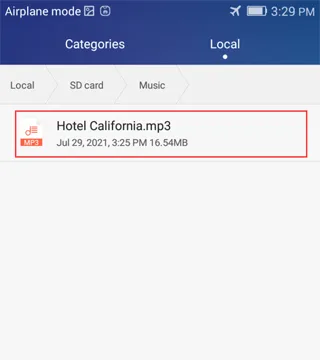
Spara din nedladdade musik i mappen "Music" i telefonens interna minne.
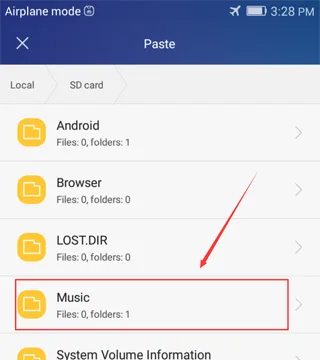
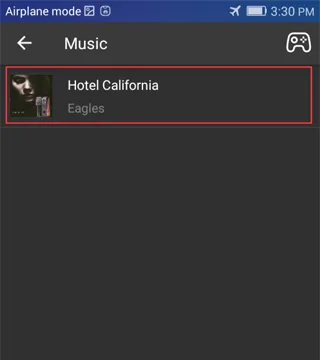
![Syncing music to an Enjox toy on Android (step 1)](/article/images/d37d58216d7d242ee12d2b373bfe5855.webp) ![Syncing music to an Enjox toy on Android (step 2)](/article/images/3ed45b66d0937d9246761bb98e724718.webp)

Musik i denna mapp visas i appen:

![Synced music folder shown in the Enjox Remote app on Android (step 3)](/article/images/73f55595ab971fe76a323660eedb864e.webp)

För iPhone:

  1. Logga in på iTunes och anslut din telefon.
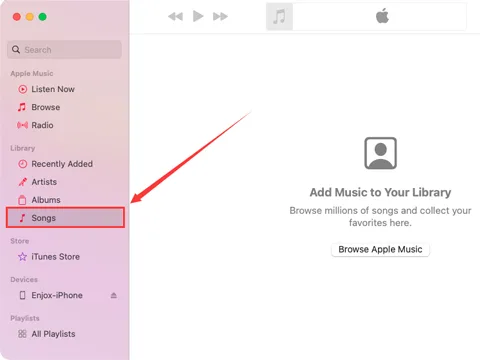
![Connecting an iPhone to iTunes to sync music (step 1)](/article/images/daa25b3168ed432c7a68fd39edb94b8a.webp)
  1. Dra in all din musik i mappen "Songs".
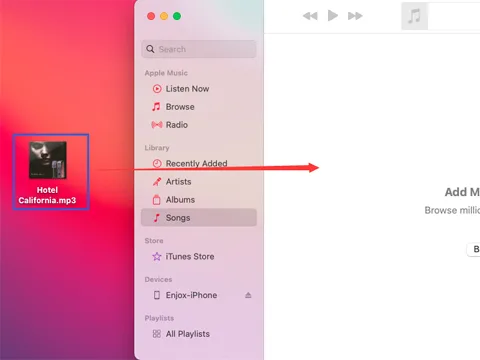
![Dragging music into the iTunes Songs folder (step 2)](/article/images/8103aea72e174712b70b43ffc4218a25.webp)
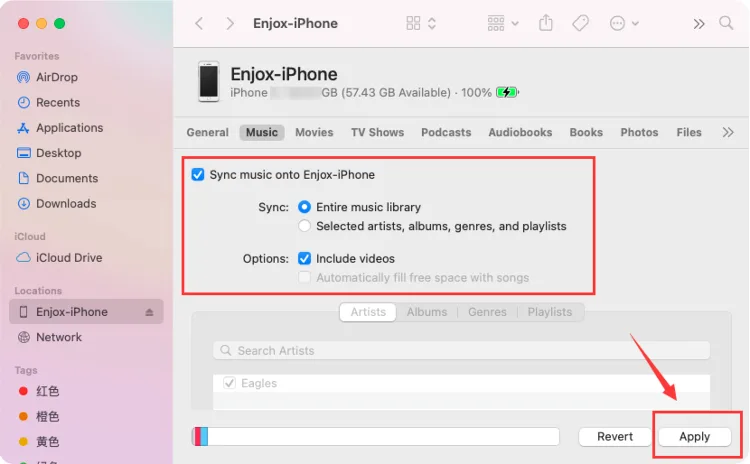
  1. Gå till avsnittet "Music" och klicka på "Sync Music". Detta synkar din musik med appen "Music" på din telefon.
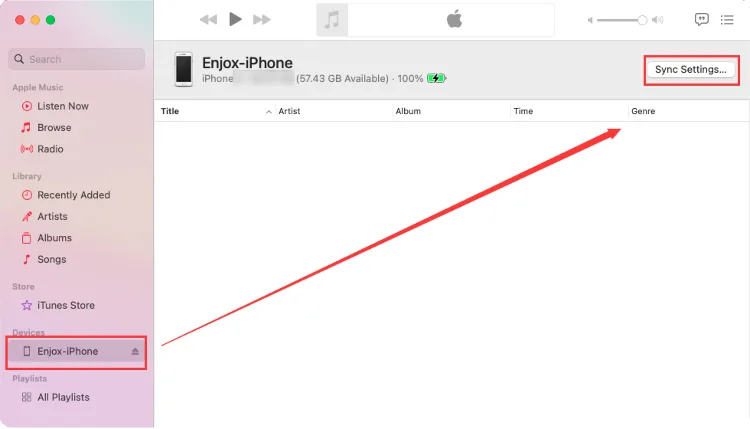
![Syncing music to an iPhone for Enjox (step 3)](/article/images/e2e67eb85e96d3f170a03df226ec5abe.webp) ![Syncing music to an iPhone for Enjox (step 4)](/article/images/dd74b96f8dd79afcd9300fa0c63054e5.webp)
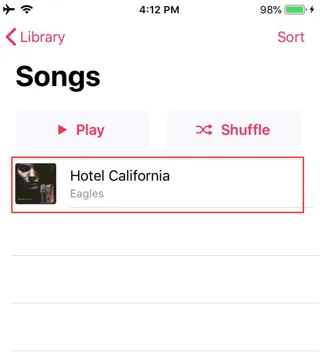
  1. Öppna appen Music på din telefon. Du ser musiken som synkats från ditt iTunes-konto. Om det finns en nedladdningsikon, klicka på den (för de låtar du vill ska visas i vår app).
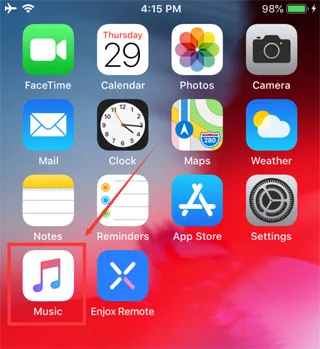
![Syncing music to an iPhone for Enjox (step 5)](/article/images/49839e37f86f10f42e40f0cb03e29330.webp) ![Syncing music to an iPhone for Enjox (step 6)](/article/images/3185419e8b532ce602f1f2d25bbe0e9a.webp)
  1. Öppna Enjox Remote-appen. Du ser musiken du har laddat ner.
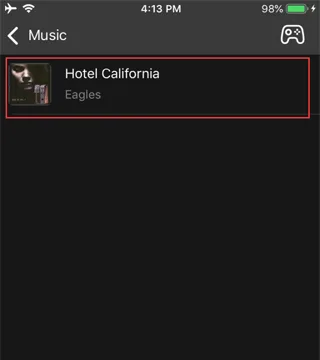
![Downloaded music shown in the Enjox Remote app on iPhone (step 7)](/article/images/215158fe048147ddd2c3460cba150439.webp)

Our site uses cookies. By continuing to use our site, you agree to the use of cookies. For more information about the use of cookies on our website, please see our Cookie Policy.